
Uploading a YOLO-format dataset into CVAT can be tricky if your folder structure or data.yaml is incorrect. This guide explains how to prepare your dataset in the correct format, and how to upload the YOLO dataset to CVAT.
1. Dataset Preparation
Your dataset should look like one of the following structures.
Structure A — With train.txt and val.txt
dataset/
├── data.yaml
├── train.txt
├── val.txt
├── images
│   ├── train
│   │   ├── img1.jpg
│   │   ├── img2.jpg
│   │   └── ...
│   └── val
│       ├── img10.jpg
│       ├── img11.jpg
│       └── ...
└── labels
    ├── train
    │   ├── img1.txt
    │   ├── img2.txt
    │   └── ...
    └── val
        ├── img10.txt
        ├── img11.txt
        └── ...
or like this:
dataset/
├── data.yaml
├── images
│   ├── train
│   │   ├── img1.jpg
│   │   ├── img2.jpg
│   │   └── ...
│   └── val
│       ├── img10.jpg
│       ├── img11.jpg
│       └── ...
└── labels
    ├── train
    │   ├── img1.txt
    │   ├── img2.txt
    │   └── ...
    └── val
        ├── img10.txt
        ├── img11.txt
        └── ...
Method 1 (Using train.txt + val.txt)
Your data.yaml should look like this. If not, correct it to follow the following format (your classes may be different).
names:
  0: face
  1: person
path: ./
train: images\train
val: images\valAs long as the rest of the data is complete and accurate, this is all we need to do! You can skip ahead directly to the “Uploading the Dataset to CVAT” section of this article.
Method 2 (Using text split files)
Your data.yaml should look like this. If not, correct it to follow the following format (your classes may be different).
names:
  0: face
  1: person
path: ./
train: train.txt
val: val.txtNow ensure that the train.txt and val.txt files contain the prefix “data” in their filepaths. Normally your file path would be looking something like this:
./images/val/d6ae7c1e-ac17-4d28-9890-253292d6fcc7.png You need to change it to this:
data/images/val/d6ae7c1e-ac17-4d28-9890-253292d6fcc7.png Important:
- CVAT runs on Linux → change
\to/ - All paths must begin with
data/ - (This is how CVAT locates files inside the ZIP archive.)
Uploading the Dataset to CVAT
- Create a new Project in CVAT.
- Click Import.
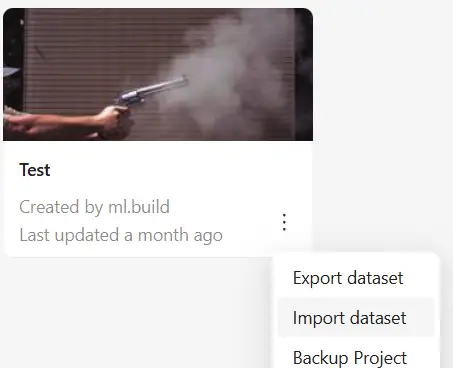
- Select YOLO Ultralytics for Detection 1.0.
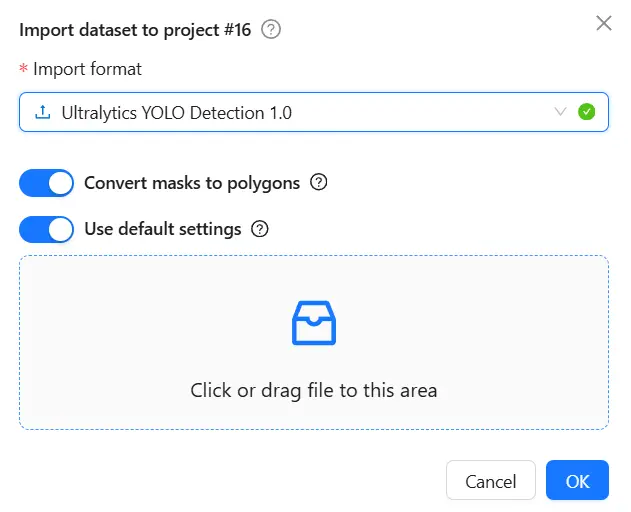
- Upload a ZIP file containing your dataset folder. I usually zip the parent folder containing the entire dataset (and its subfolders). So if my parent folder is called “custom_dataset”, the generated zip will be “custom_dataset.zip”.
- Click OK.
- Track progress in Menu → Requests.
Once finished, CVAT will show all your images and labels in the project.
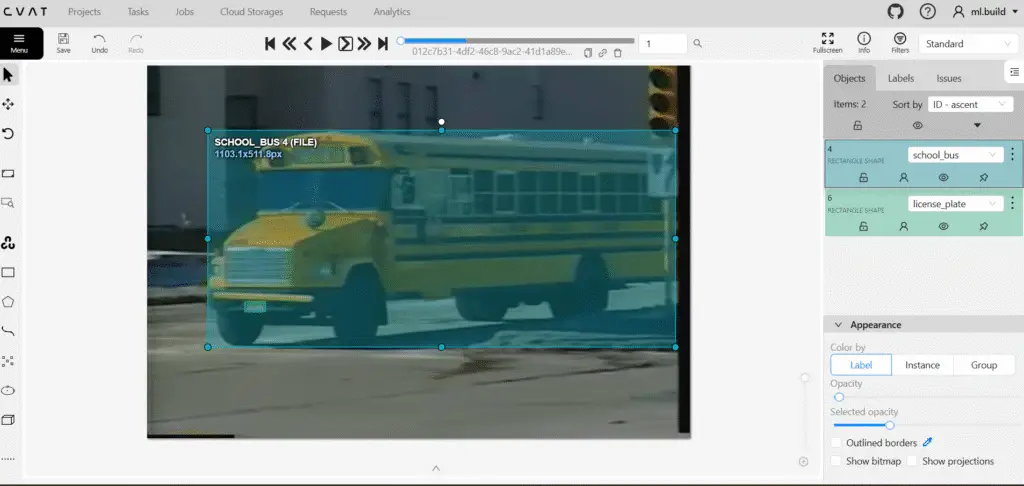
Congratulations!
This marks the end of the Upload a YOLO dataset to CVAT article. Any questions or feedback about the article can be left in the comments section below.